All qualified
Everyone who fits the job, already filtered and selected.
- Alicia Tran
- Chris Anand
- Jordan Okafor
- Tessa LindUnavailable
Scheduling, dispatch, billing, and payments in one system, built for interpreting.


However your agency works: by setting, by service, or by the languages you cover.
Send a job to the interpreters who qualify, see who accepts, and confirm your team. IMP does the filtering, so the offer goes to the right people.
IMP lists the interpreters who qualify for the job and selects them for you. Anyone marked unavailable, already booked at that time, or who already responded is left off.
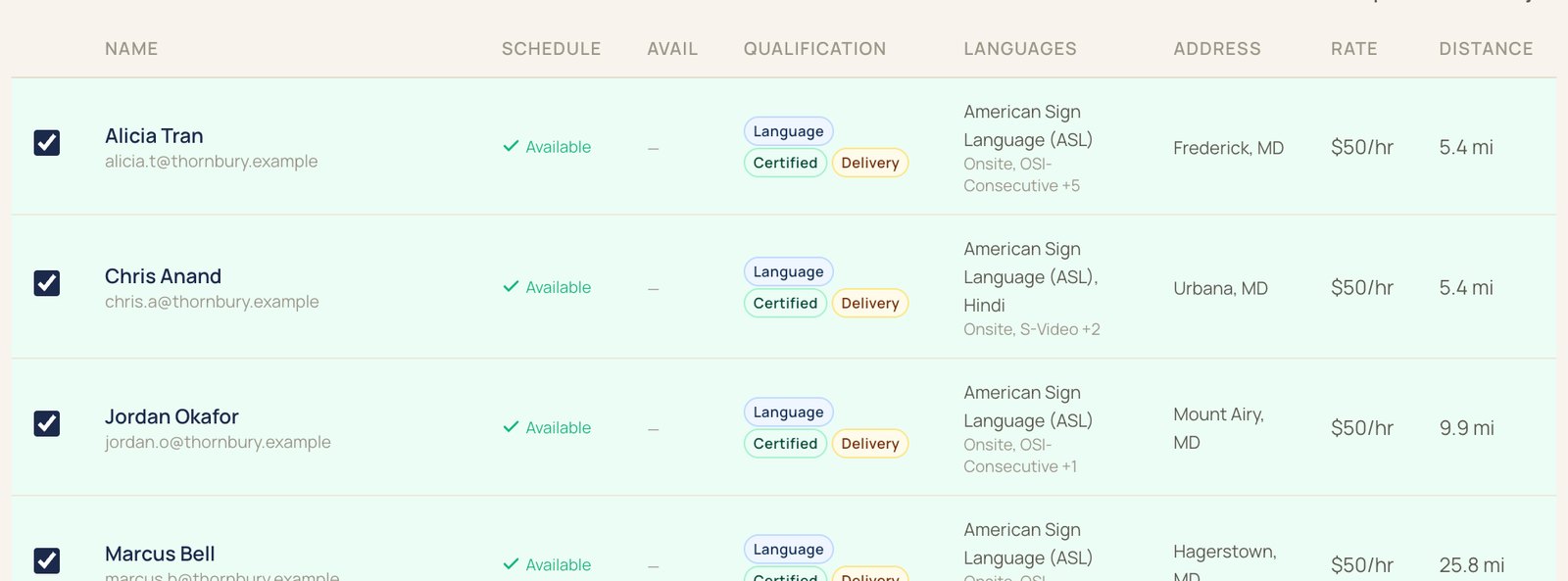
Schedule. Whether they're free at that time.
Why they qualify. Tags for language, certification, delivery, and specialized settings.
Rate. Their pay rate, so the job's cost is clear before you send.
Distance. How far they are from the job.
In this example, 6 of 9 interpreters qualify, and all six are selected.

The same three tabs you'll see in the broadcast window.
Everyone who fits the job, already filtered and selected.
Sort by distance to the job, for onsite work.
A group you build and save, like the interpreters a client prefers.
The three pictures above are examples.
Qualified interpreters get the offer as a push notification in the IMP app, on iOS, Android, or the web. The notification leaves out the client's name.
Interpreters accept in the app. Accepted jobs wait in your Pending Confirm queue.
You confirm who you want, or skip the broadcast and assign someone directly.
Confirmed interpreters get the full details and a reminder about two hours before.

The phone above is an example.
Set a timer and a limit, and IMP sends the job again for you.
Example: every 30 minutes, up to three rebroadcasts. You choose the interval and the limit.
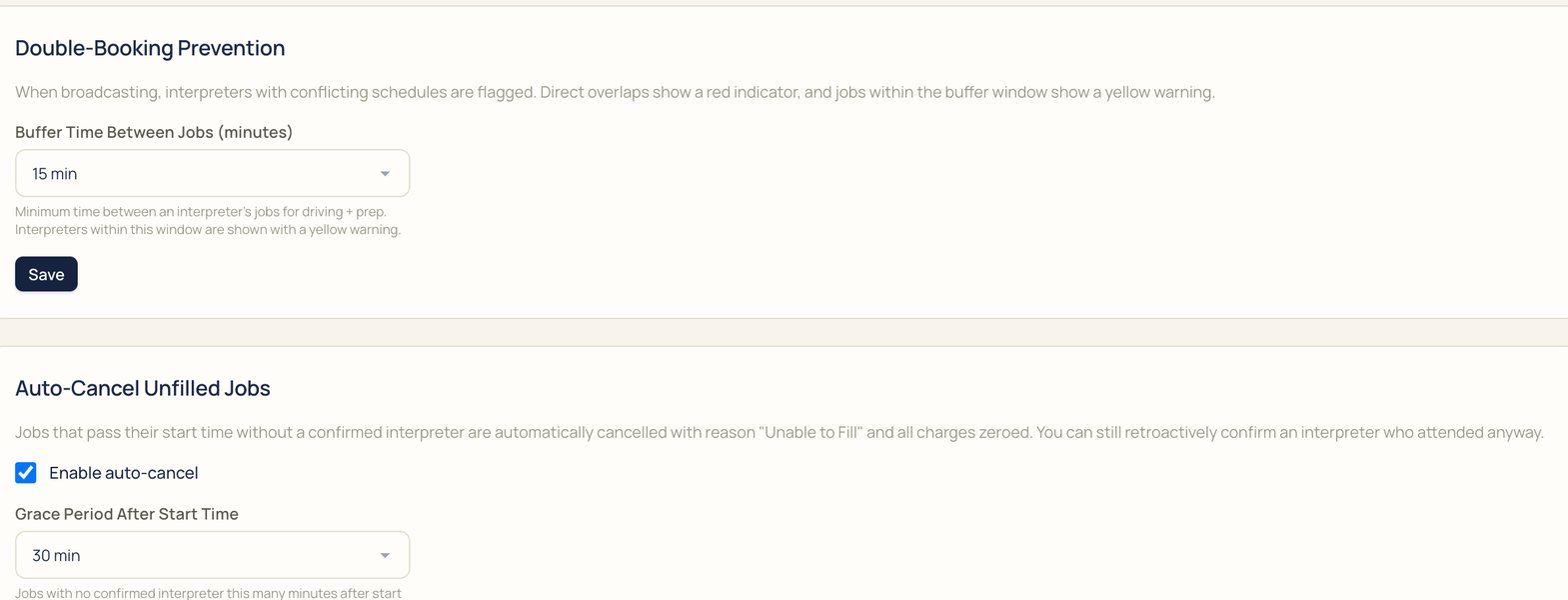
When you broadcast, an interpreter with a job at the same time shows a red flag. A job inside your buffer window shows a yellow warning.
A job that reaches its start time without a confirmed interpreter is cancelled as Unable to fill, with charges zeroed. You can still confirm an interpreter who showed up anyway.
Something else? Bring it to the demo.
The interpreters who qualify: the right language, the credentials the job needs, and the settings they're cleared for. Anyone marked unavailable, already booked at that time, or who already responded is left off by default.
Yes. Send to everyone who qualifies, sort by distance, or use a custom roster you've saved.
Turn on rebroadcast to send it again on a timer, up to a limit you set. A job that reaches its start time without a confirmed interpreter is cancelled as Unable to fill, and you can still confirm someone after the fact.
Yes. Assign an interpreter directly and confirm them in one step.
Only the details you choose in Broadcast Display. They see the rest once confirmed.
As a push notification in the IMP app on iOS and Android, or on the web. The notification leaves out the client's name.
Yes. When you broadcast, a direct overlap is flagged red, and a job inside your buffer window shows a yellow warning.
Yes. Team jobs keep both interpreters on one appointment.
We'll book it in IMP with you, start to finish.